We’ve all been there: you open your browser to check your website, and instead of your latest project or write-up, you’re greeted by a glaring red browser warning.
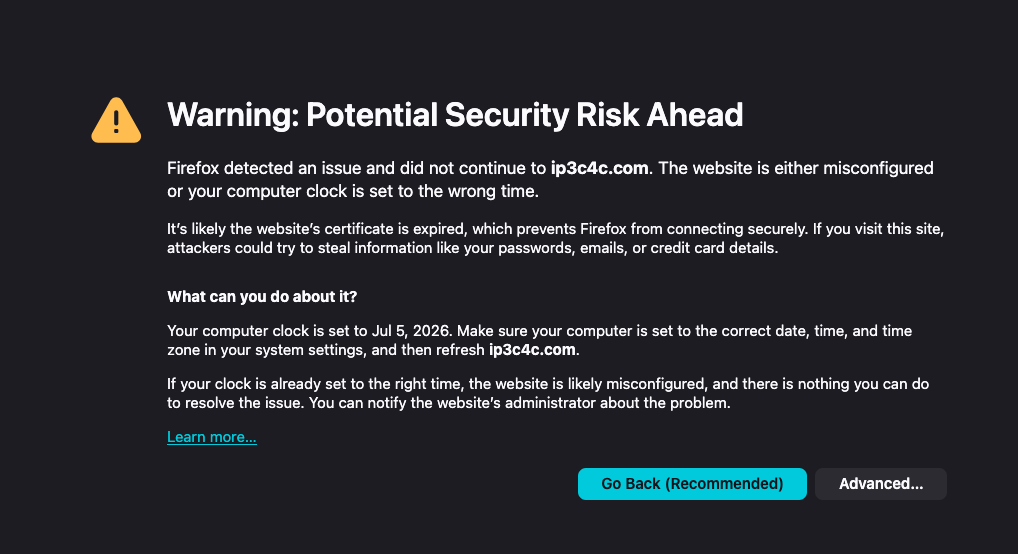
A few days ago, my blog hit an unexpected wall when its automated Let’s Encrypt SSL certificate expired. Here is a breakdown of the symptoms, the underlying technical root cause, and how a simple DevOps trick can prevent it from ever happening silently again.
The Symptom
Visitors attempting to access the site were blocked by an HTTPS certificate validation error. Checking the raw certificate data via the browser or running a quick terminal diagnostic revealed the exact bottleneck:
curl -Iv [https://ip3c4c.com](https://ip3c4c.com) 2>&1 | grep -A 2 "start date"
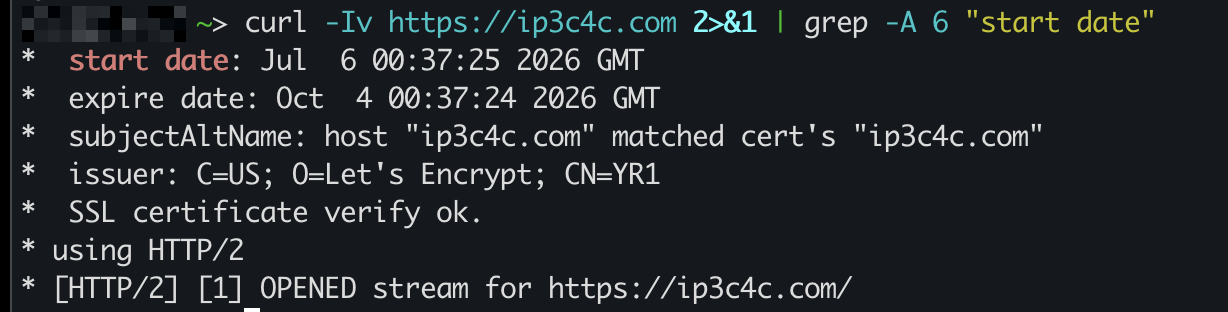
* start date: Mar 27 23:52:39 2026 GMT
* expire date: Jun 25 23:52:38 2026 GMT
The 90-day Let’s Encrypt certificate had officially lapsed on June 25, meaning the automated backend renewal mechanism had quietly failed in the background weeks prior.
The Root Cause: Silent Queue Stalls
GitLab Pages offers seamless, out-of-the-box Let’s Encrypt integration. Under normal circumstances, an automated background daemon sweeps your projects and triggers an ACME (Automated Certificate Management Environment) domain validation challenge when a certificate has fewer than 30 days of validity remaining.
However, this automated background process can occasionally stall due to two common issues:
- Transient Validation Errors: If the automated background worker experiences a brief network timeout, a temporary Let’s Encrypt API rate limit, or a transient DNS resolution failure, it writes a hard “Failed” error flag to your domain’s routing entry. GitLab’s automated process will often back off and stop aggressively retrying.
- Project Dormancy: When a static site generated via Hugo or Jekyll doesn’t receive regular updates, the background daemon responsible for evaluating domain routing health can deprioritize the repository, allowing an existing error state to sit unresolved.
Crucially, a standard content update (git push) does not evaluate or clear this routing error flag. A standard pipeline focus is entirely on content distribution—compiling markdown into static HTML. It moves the files into place but completely ignores the underlying SSL/TLS state of the custom domain routing mesh.
The Immediate Fix
If you are facing this issue right now, you can force GitLab to clear its internal error flag and instantly request a fresh certificate manually:
- Navigate to your specific project repository in GitLab.
- In the left sidebar, go to Deploy > Pages.
- Locate your custom domain and click Edit.
- Click the manual “Retry” button next to the Let’s Encrypt status banner (or toggle the Automatic certificate management setting off and back on).
This manually bypasses the asynchronous background queue, instantly completes the ACME validation handshake, and pushes the new certificate to GitLab’s edge proxies within minutes.
The Permanent Fix: The Scheduled Pipeline Heartbeat
To ensure the background renewal workers stay active and successfully recover from any future transient errors automatically, you can implement a Scheduled Pipeline.
In the software industry, scheduled pipelines are time-driven cron jobs used to execute tasks like nightly security scans, dependency updates, or system maintenance. For a static site, running your deployment pipeline on a regular time-based schedule acts as a system-wide heartbeat.
By simulating regular cluster activity, it forces GitLab’s infrastructure to continuously re-evaluate the project’s external routing assets, clearing out stuck error states and safely renewing certificates well within the 30-day window.
How to configure it:
You don’t need to change a single line of your .gitlab-ci.yml code.
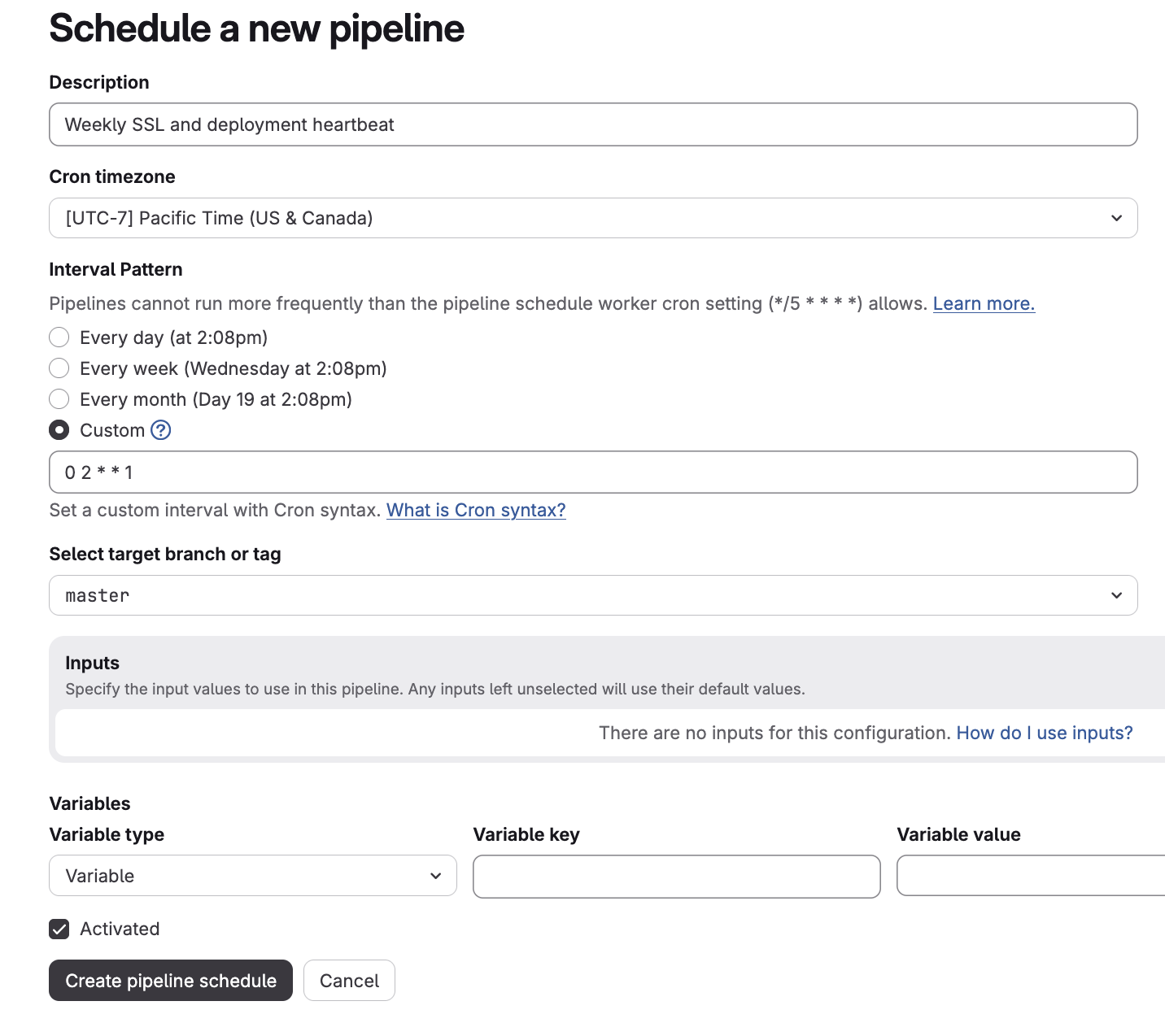
- Go to your project repository on GitLab.
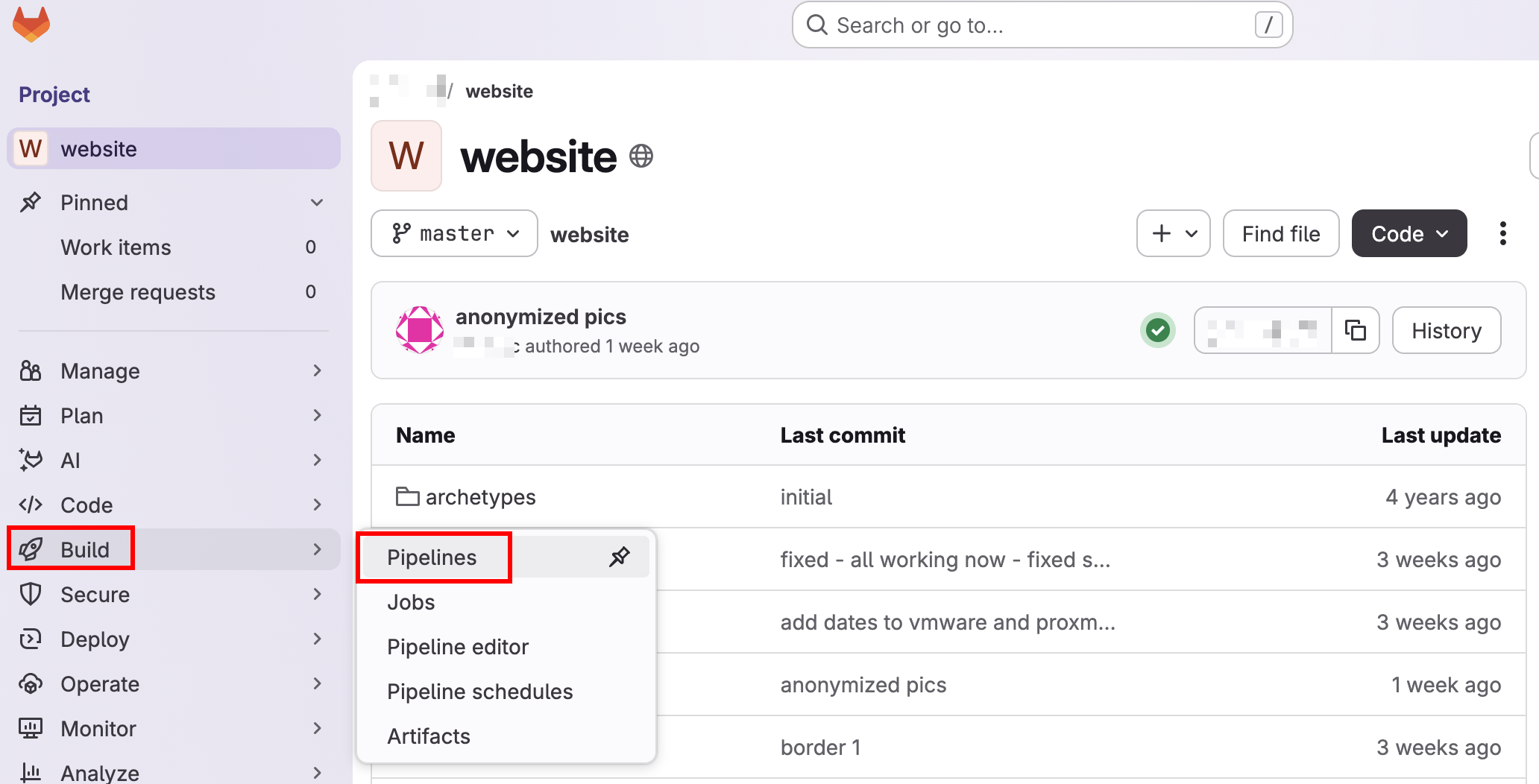
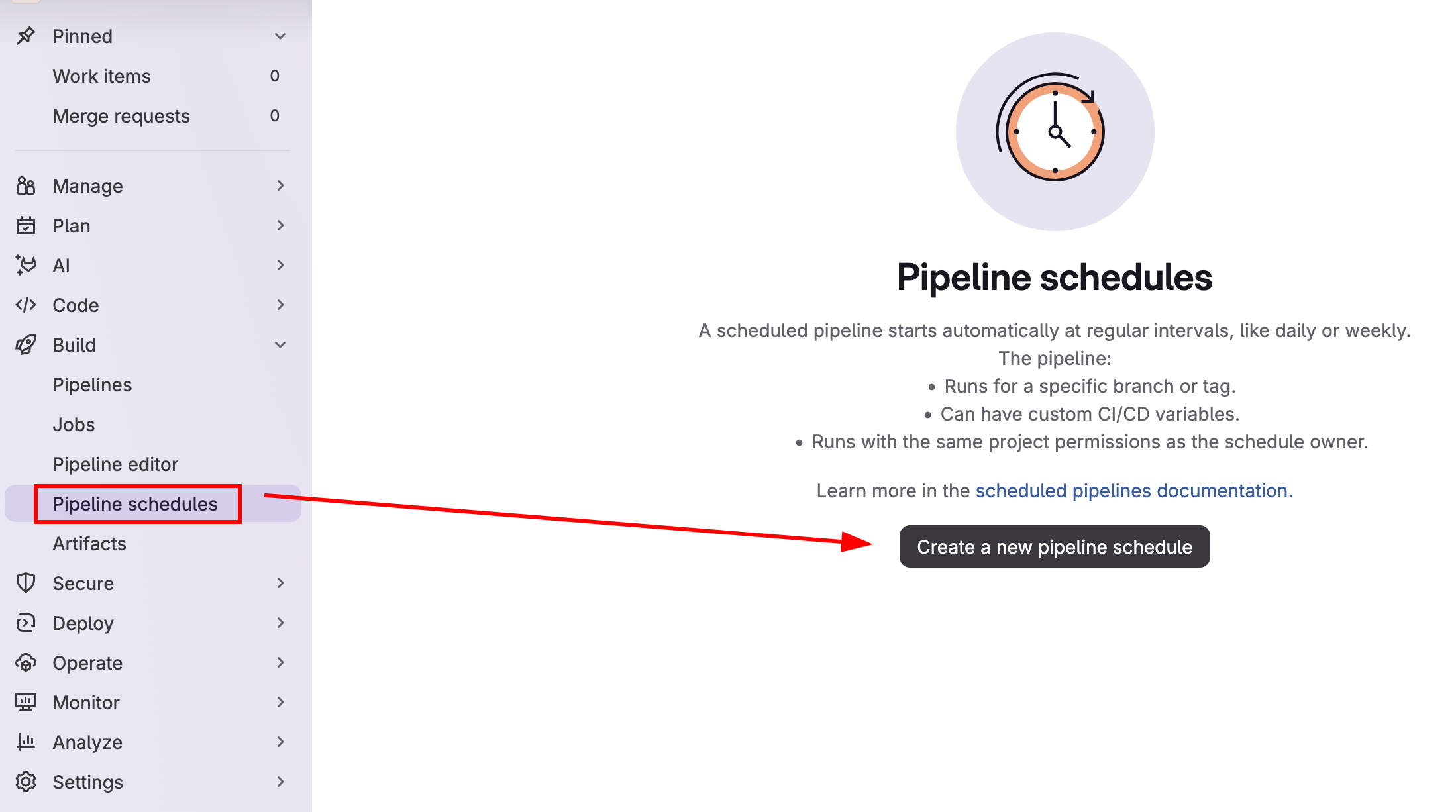
- Navigate to Build > Pipeline schedules in the left sidebar.
- Click New schedule.
- Give it a description (e.g.,
Weekly SSL and deployment heartbeat). - Set the interval pattern to Custom and enter
0 2 * * 1(this configures the pipeline to run automatically every Monday morning at 2:00 AM). - Target your default branch (
mainormaster) and click Save.
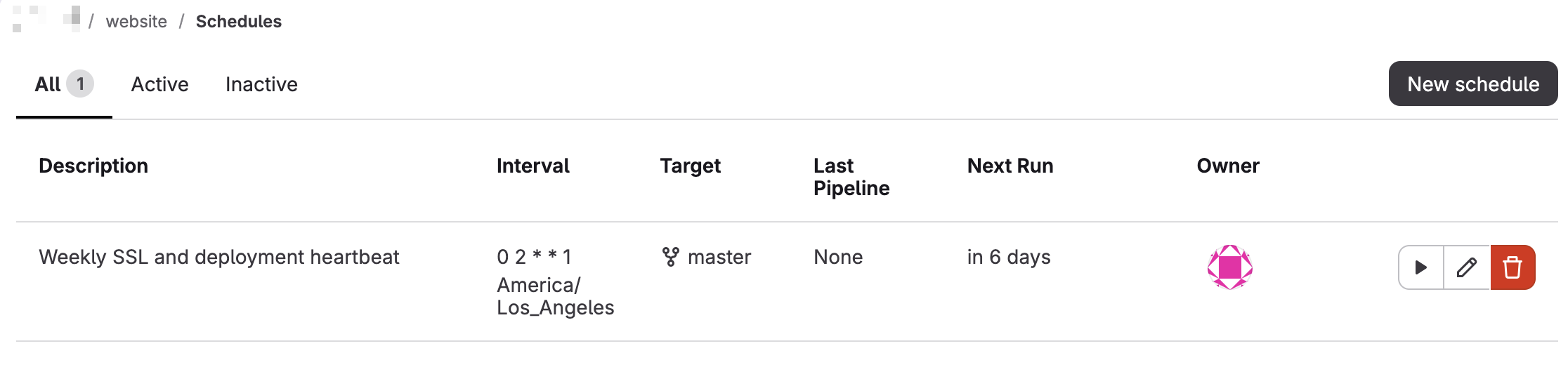
Now, even if you don’t push code to your repository for months, the time-based heartbeat keeps the automation alert and functioning perfectly behind the scenes.